| .. | ||
| ahk | ||
| cmd | ||
| glzr | ||
| komorebi | ||
| start | ||
| fastfetch.jsonc | ||
| Microsoft.PowerShell_profile.ps1 | ||
| neovide.toml | ||
| readme.md | ||
| SumatraPDF-shortcuts.txt | ||
| vsvimrc | ||
| WindowsTerminal.json | ||
| wslconfig | ||
| wslgconfig | ||

Windows dotfiles
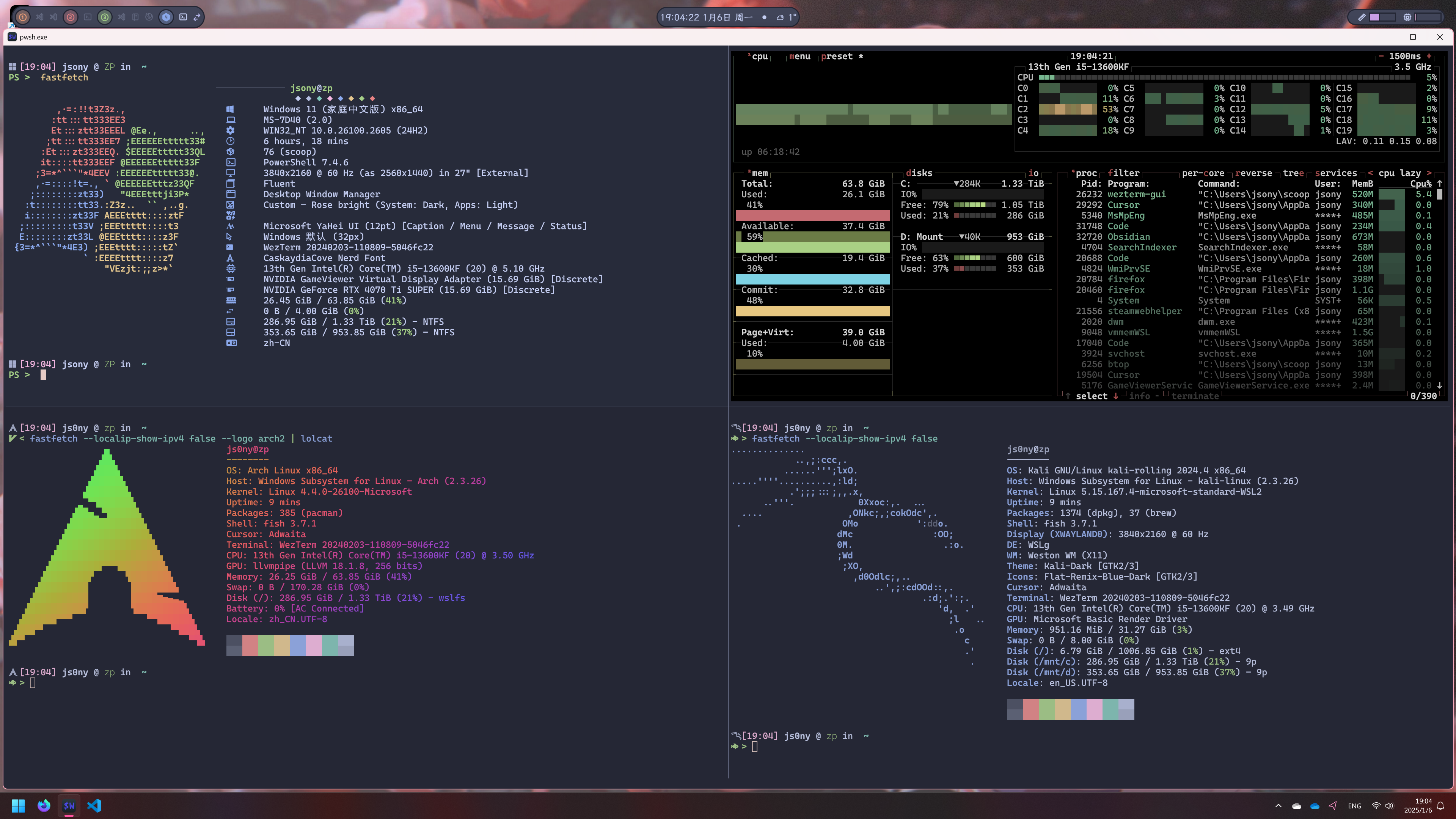
- Terminal Emulator: WezTerm
- Tiling Window Manager: GlazeWM
- Status Bar: Zebar
- Quake Terminal: Windows Terminal
- Shell: PowerShell Core
- WSL1: Arch Linux
- WSL2: kali-linux
By following the Windows Directory Standard, assign the following directories corresponding to $XDG_CONFIG in Unix, some of the software(like wezterm) will use these directories as the default configuration path:
| Windows Path | XDG-Equivalent | Default |
|---|---|---|
%APPDATA% |
$XDG_CONFIG_HOME |
%USERPROFILE%\AppData\Roaming |
%LOCALAPPDATA% |
$XDG_DATA_HOME |
%USERPROFILE%\AppData\Local |
%LOCALAPPDATA%\Cache |
$XDG_CACHE_HOME |
%USERPROFILE%\AppData\Local\Cache |
%LOCALAPPDATA%\State |
$XDG_STATE_HOME |
%USERPROFILE%\AppData\Local\State |
An example bootstrap script is provided in bootstrap/Windows.ps1, which will create necessary directories and link the files.
PowerShell Profile
This is the PowerShell Core profile, not the legacy Windows PowerShell profile, which is faster(powershell vs pwsh, pwsh types 6 letters less lol), cross-platform and compatible with Unix.
By default, PowerShell profile is stored in %UserProfile%\Documents\PowerShell\Microsoft.PowerShell_profile.ps1.
It is convenient to use $PROFILE to locate the profile file.
Test-Path $PROFILE
Just like Unix Shell, there are configs work for different sessions. To locate them, use select * followed by $PROFILE.
If you want to change the AllUsers scoped profile, do not install pwsh via winget, use scoop instead, since winget will install pwsh to %ProgramFiles%\PowerShell\7\pwsh.exe, which is read-only even with Administrator privileges.
PS > $PROFILE | Select *
AllUsersAllHosts       : C:\Users\jsony\scoop\apps\pwsh\current\profile.ps1
AllUsersCurrentHost    : C:\Users\jsony\scoop\apps\pwsh\current\Microsoft.PowerShell_profile.ps1
CurrentUserAllHosts    : C:\Users\jsony\Documents\PowerShell\profile.ps1
CurrentUserCurrentHost : C:\Users\jsony\Documents\PowerShell\Microsoft.PowerShell_profile.ps1
Length                 : 68
Note that the variable $PROFILE.* are constants, the only way to change it is to compile your own pwsh
To link the profile file:
New-Item -ItemType SymbolicLink -Path $PROFILE -Target "$DOTFILES\win\Microsoft.PowerShell_profile.ps1" -Force
I use starship to customize the prompt, which is located in tools/starship/starship_pwsh.toml. This prompt config is cross-platform for powershell core, since I use the prompt to identify the shell.
.wslconfig - WSL2 Configuration
.wslconfig only supports %UserProfile%\.wslconfig as the configuration path
New-Item -ItemType SymbolicLink -Path "$Env:UserProfile\.wslconfig" -Target "$DOTFILES\win\.wslconfig" -Force
Neovide
Neovide configuration is (only) stored in %APPDATA%\neovide\config.toml
New-Item -ItemType SymbolicLink -Path "$Env:AppData\neovide\config.toml" -Target "$DOTFILES\win\neovide.toml" -Force